Designing a task app’s capture flow for ten‑second entry

Designed a productivity app around one timeline and one button, removing the “where does this go?” decision that makes people abandon task apps. The unified entry cut the taps to create a task by about 40%.

What I did

  • Market research
  • User flows
  • UI design
  • Prototyping and testing
Welcome screen
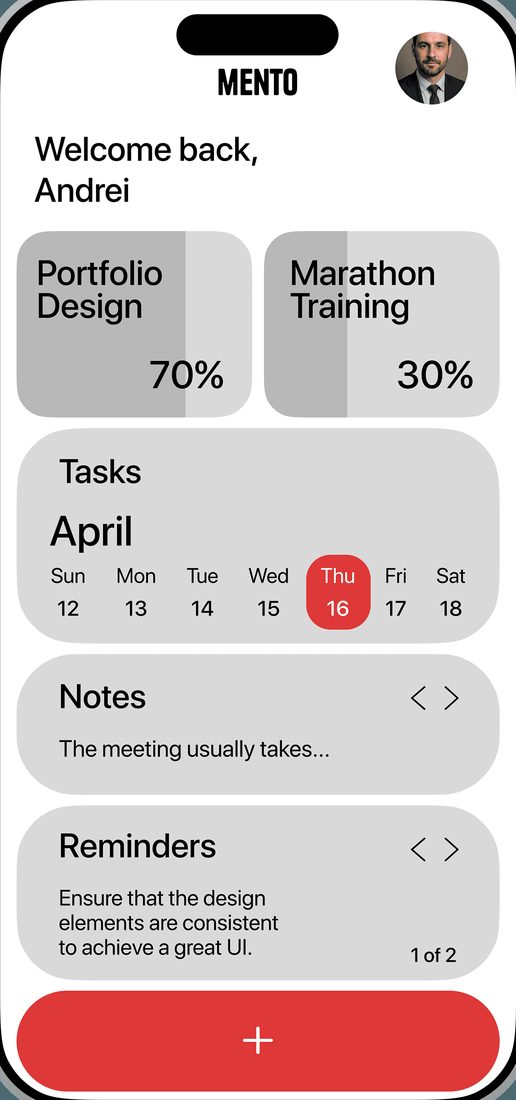
Daily dashboard with goals and tasks
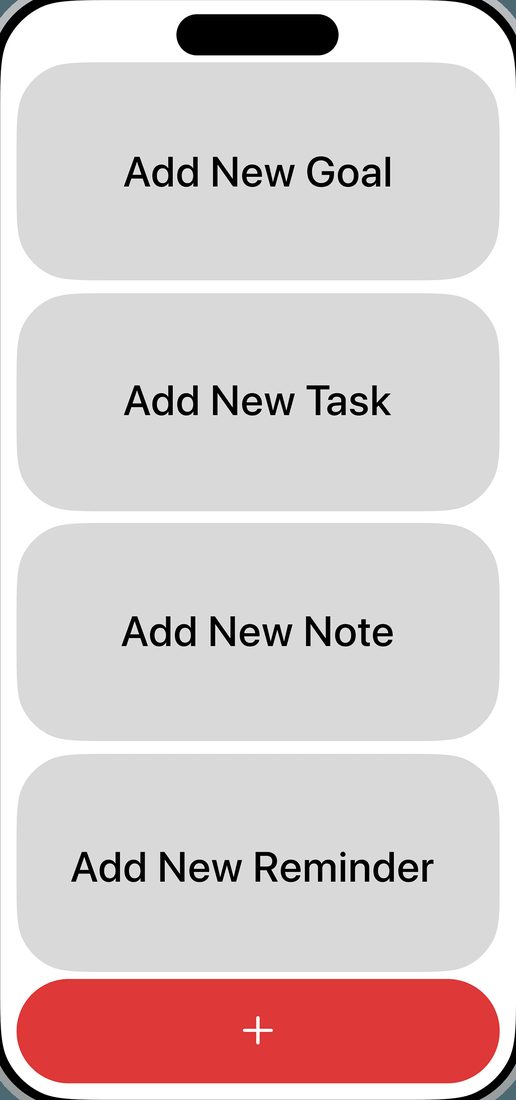
Full-screen add menu with four options
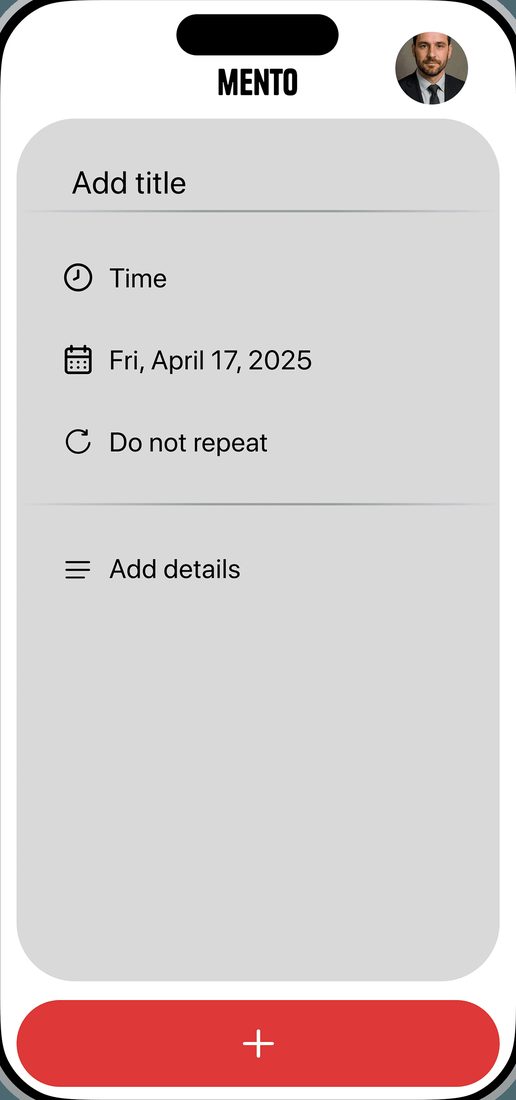
New item, empty state
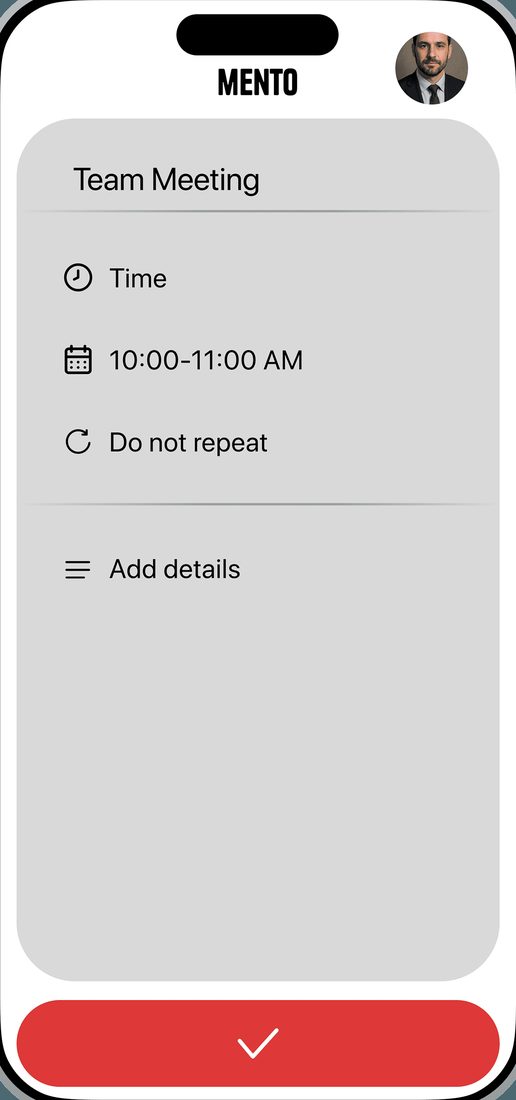
New item set up with title, time and repeat
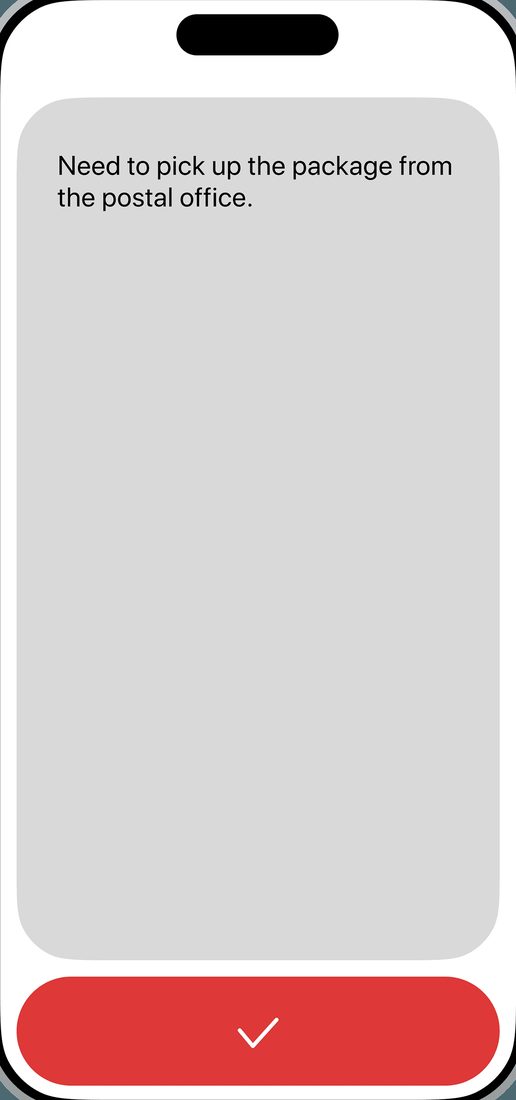
Quick note capture screen
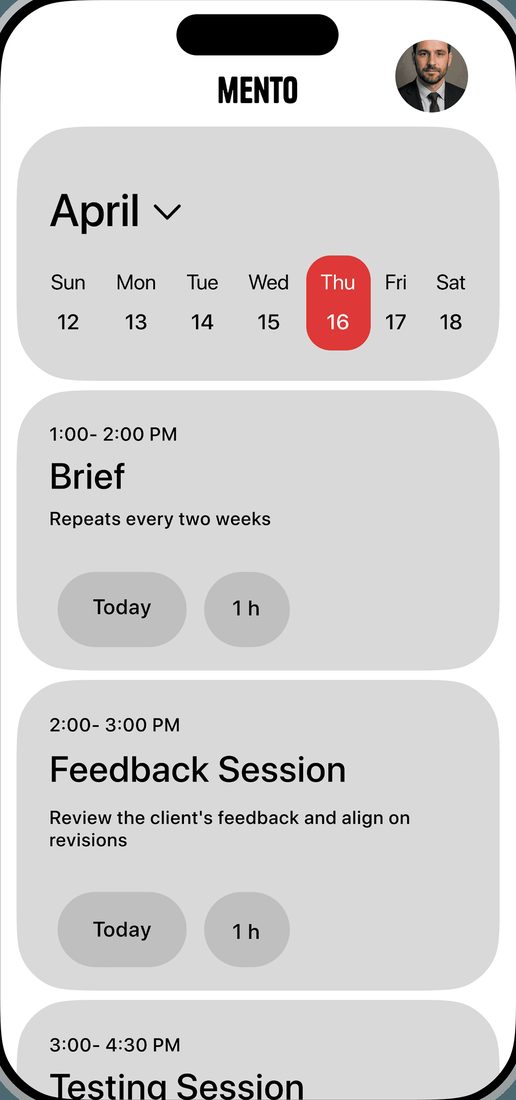
Timeline for one day
Timeline with mixed item types
Timeline later in the day
Role
Product Designer
Concept to prototype, solo
Platform
iOS
Mobile first, used in motion
What I did
Market research & reframing
Flows, wireframes, usability tests, UI
Status
Interactive prototype
Tested with users

The starting point

Started from why people quit, not from a feature list

The productivity market is crowded and retention is the unsolved problem. The leading apps share one pattern: feature fatigue. Enormous power, but real setup and real mental effort just to organise a day.

People abandon them because organising the work feels heavier than doing the work. Every project, label and folder is one more decision before the task exists.

So the brief wasn’t “a cleaner to-do app”. It was a measurable hypothesis: if capturing a task takes under ten seconds, people open the app every day and stay.

< 10 s

the target from opening the app to a saved task. Every screen was judged against it.

~40%

fewer taps to create a task than in nested-menu apps, measured on the final prototype.

Folder-first apps

  • Decide a category before writing
  • Projects, labels, nested lists
  • Setup before value

Plain notes apps

  • Fast to write in
  • No time, no reminders
  • Nothing surfaces on the day

Mento

  • Write first, no category
  • One timeline, sorted by date
  • Goals, tasks, notes and reminders in one list

What the research pointed to

Six rules. Every screen that followed had to pass them.

  • Capture before categorise.

    Writing comes first. Where it belongs is decided by the date, not by the user.

  • One entry point.

    A single button adds a goal, a task, a note or a reminder from anywhere.

  • Design for walking.

    Targets big enough to hit while moving, because that’s when ideas arrive.

  • Hierarchy without colour.

    Goals, tasks and notes must read differently in grayscale, through weight and shape.

  • Give red one job.

    Red marks the add action and today. Nothing else gets to compete for the eye.

  • Soft, not clinical.

    Deep corner radii and warm grey, so the tool feels friendly rather than administrative.

Who I designed for

The same person has two modes, and the app had to serve both without a settings screen

Rapid capture

An idea arrives on the street or in a meeting. The only goal is to get it out of her head before it’s gone. Any screen between the thought and the keyboard is a reason to not bother.

Needs: one tap to type, a confirm button she can hit without looking
Future planning

Sunday evening, organising the week. She wants to see what is already on each day, give new items a time and a repeat, and move between days without losing the overview.

Needs: a week strip, time and repeat fields, a timeline that reads at a glance

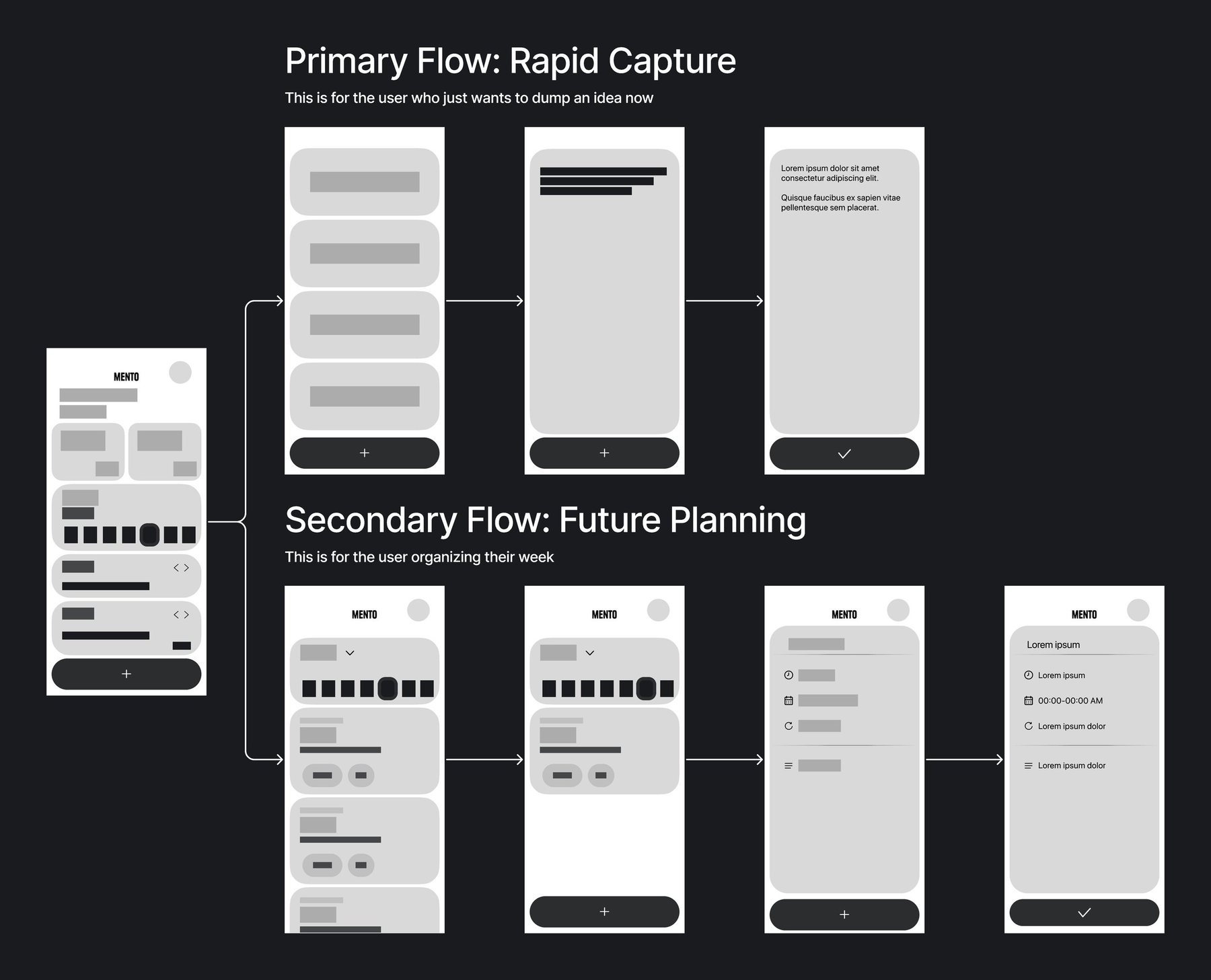
Both modes start from the same red button. The difference is how far she goes: capture stops at the first screen, planning continues into time, date and repeat. The app never asks which mode she’s in.

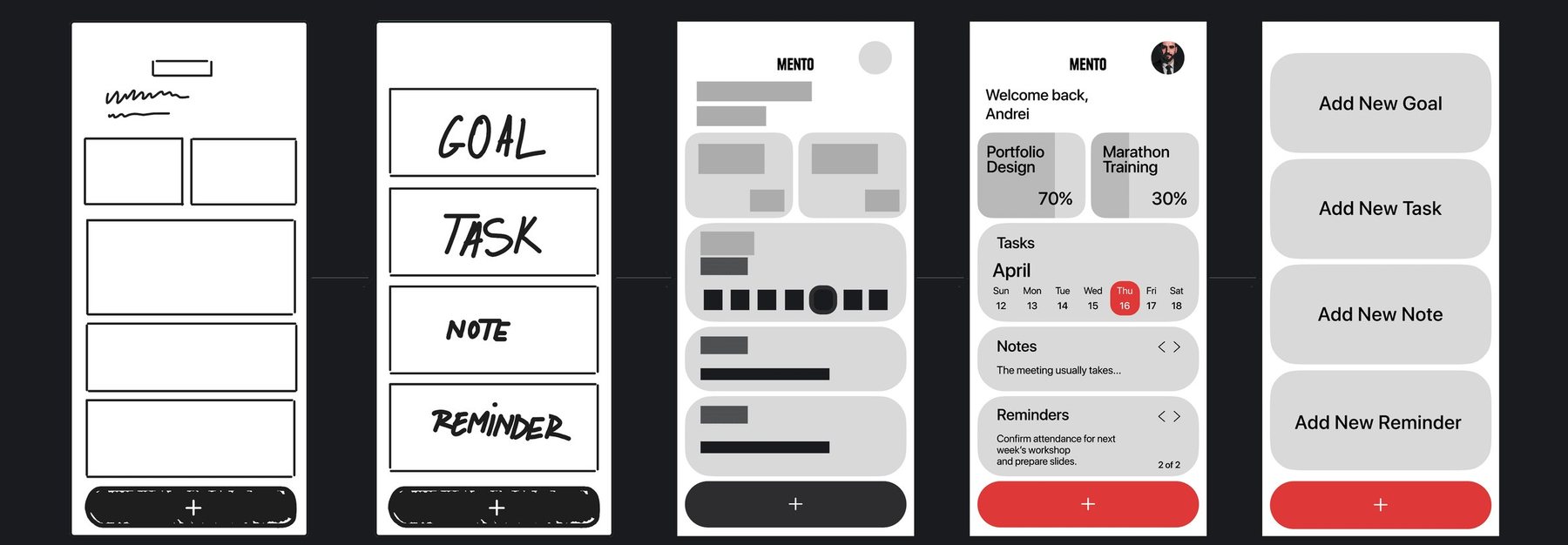
Wireframe flows: primary flow for rapid capture in three screens, secondary flow for future planning in four screens
The two flows as wireframes, both branching from the dashboard. Rapid capture is three screens; planning is four.

Discovery & reframing

Dropped folders entirely after watching people freeze at “where does this go?”

The first concept was a better folder system. Watching people use those apps changed my mind: they weren’t slow at typing, they were stuck deciding where to put a task. Work or personal? Urgent or someday? I called it categorisation paralysis.

So I reframed the strategy from “better organisation” to “streamlined capture” and removed folders entirely, in favour of a chronological timeline. The riskiest decision in the project, and the only one consistent with the goal. A date is a fact she already knows. A category is a decision she has to make.

Mentofive steps, no decisions Open app Tap +same button everywhere Type the task Pick a date Done Folder-first appsseven steps and a decision before anything is written Open app Whichcategory? Find the folderor the list Tap + Type the task Pick a date Save Done The yellow diamond is the step Mento removes. It is also the step where, in testing, people stopped.
ScreenUniversal addStepUser decisionOutcome

The result: the question “where does this go?” disappears from the flow. The only input Mento needs beyond the text is a date, and the timeline does the organising.

The unified entry

Chose a full-screen stack over a speed dial, because people add tasks while walking

With everything in one stream, the + button became the most important interaction in the app. It had to open four object types without bringing tabs back. I sketched two directions and tested both.

The contextual menu, speed-dial bubbles that keep the timeline visible, is the standard pattern. It failed: while walking, three out of ten taps missed.

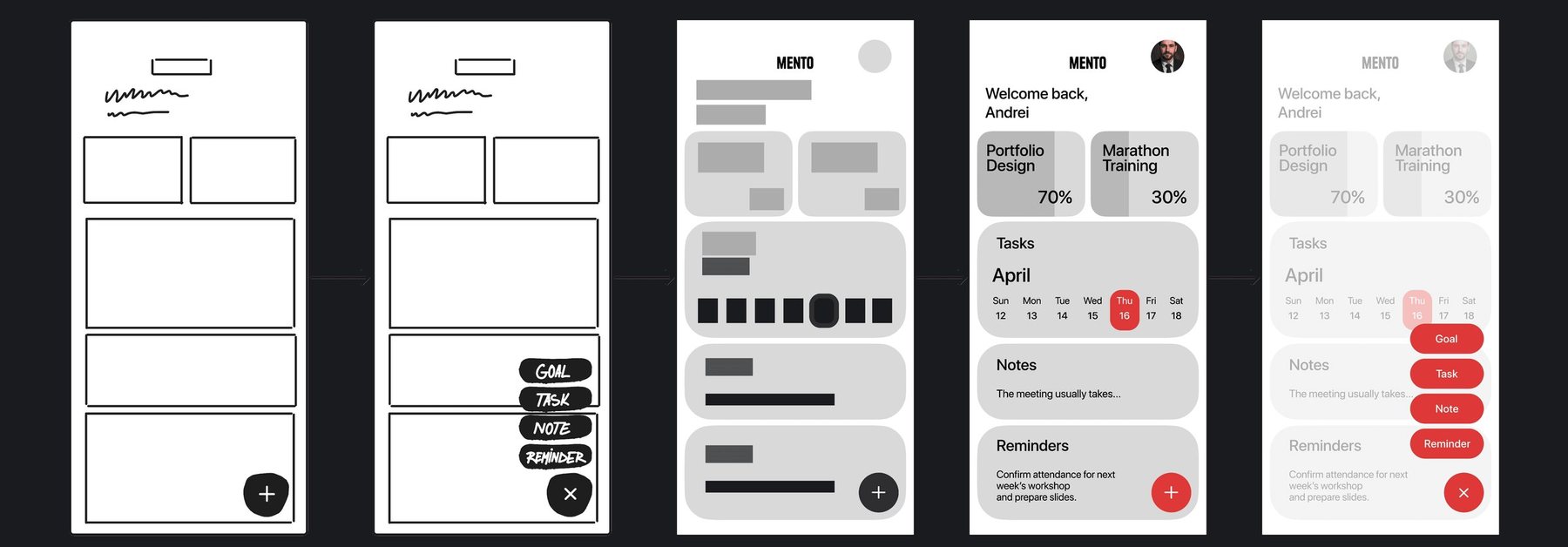
The full-screen stack, four full-width buttons, hides the timeline for a moment but gives every target the width of the phone. I chose it, following Fitts’s law: at the moment of capture, hitting the button matters more than seeing the list behind it.

Focus Stack direction: from sketch to final UI, four stacked full-width buttons

Focus Stack Selected

From the first sketch to the final UI: four full-width targets, one per object type, and the same red button at the bottom to add or confirm.

Contextual menu direction: speed-dial bubbles fanning out from the plus button

Contextual menu Rejected

Speed-dial bubbles that keep the timeline visible. Standard, but the small targets produced a 30% mis-tap rate when users added items in motion.

Decision

Width over context

Each option is a full-width button. The timeline disappears for one tap, and comes back the moment the item is saved.

Decision

Same button, two meanings

The red bar reads + on the timeline and ✓ on the entry screen. One place to look, whatever the step.

Decision

Four, not more

Goal, task, note, reminder. Anything that didn’t fit one of the four was a sign the model was wrong, not a reason for a fifth.

  1. Daily dashboard with goals, tasks, notes and reminders

    01

    Dashboard

    Goals with progress, this week’s tasks, the latest note and reminder. The red + sits at the bottom.

  2. Add menu with four full-width options

    02

    Add

    Four full-width targets. Big enough to hit while walking.

  3. New item screen with title, time, date and repeat fields

    03

    Write

    The cursor is already in the title. Time, date and repeat are there if she wants them, pre-filled if she doesn’t.

  4. Team Meeting item filled in with a time range

    04

    Confirm

    The same red bar now reads ✓. No separate save button to find.

  5. Timeline showing the new item on its day

    05

    On the timeline

    The item appears on its day, with the time and duration as pills. Nothing to file.

The result: from the dashboard to a saved task in four taps, and the mis-tap problem from the speed dial gone, because there is nothing small left to hit.

Timeline

Made one list carry four kinds of content, by making them look different, not live apart

Removing tabs moved the problem. The question became “how does one list show a goal, a task, a note and a reminder without them blurring together?”

I designed in grayscale first, so hierarchy couldn’t lean on colour. The first test showed why: goals looked identical to tasks. I fixed it with type weight and shape: goals get a heavier title and a progress fill, tasks get a time range and duration pills, notes are plain text, reminders carry a count.

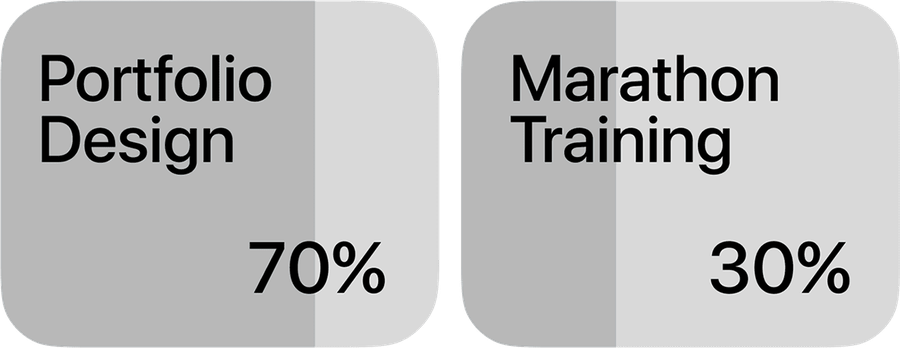
Two goal cards with progress fills: Portfolio Design 70%, Marathon Training 30%

Goals

The progress fill is the card background itself. 70% is read before the words are.

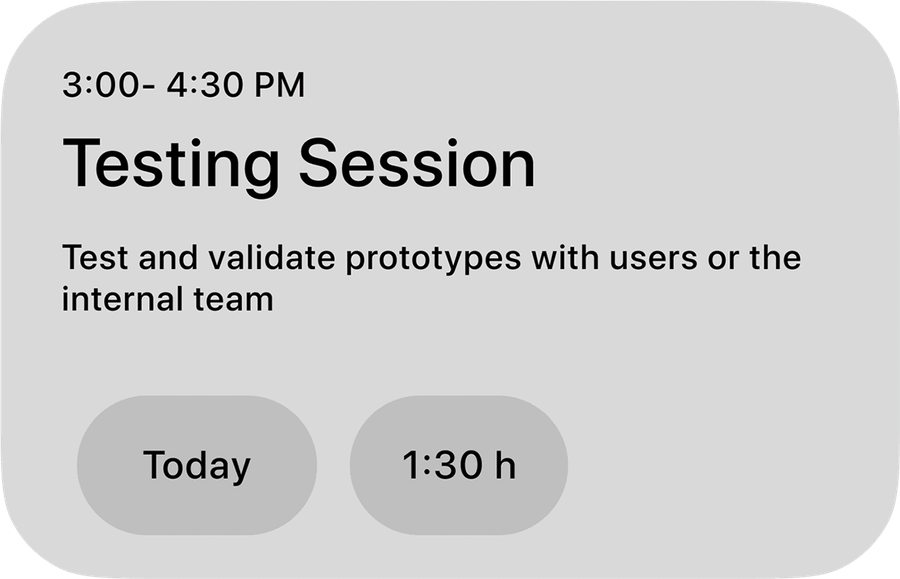
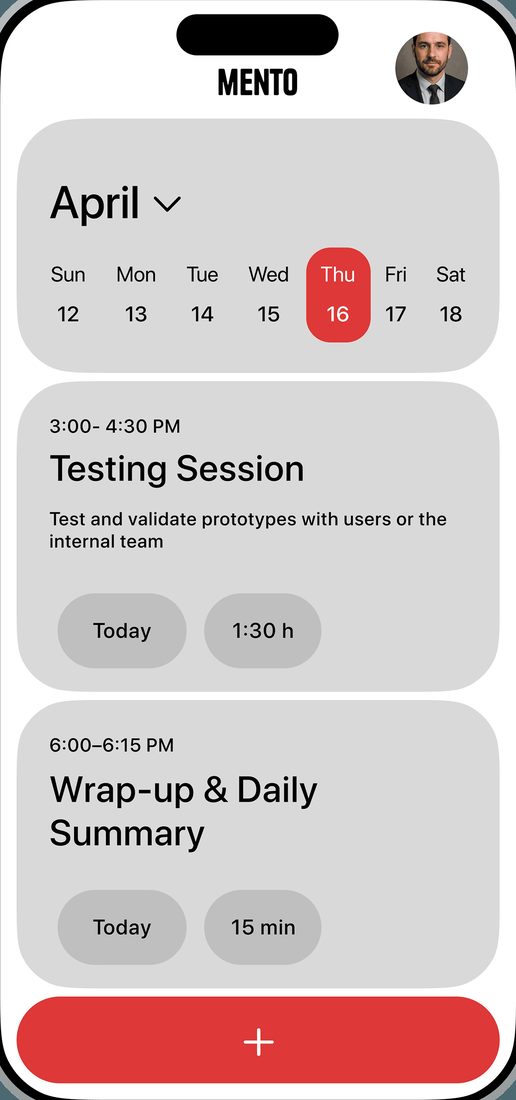
Task card with time range, title, description and Today and duration pills

Tasks

Time first, then the title, then two pills: when and how long. The description stays small.

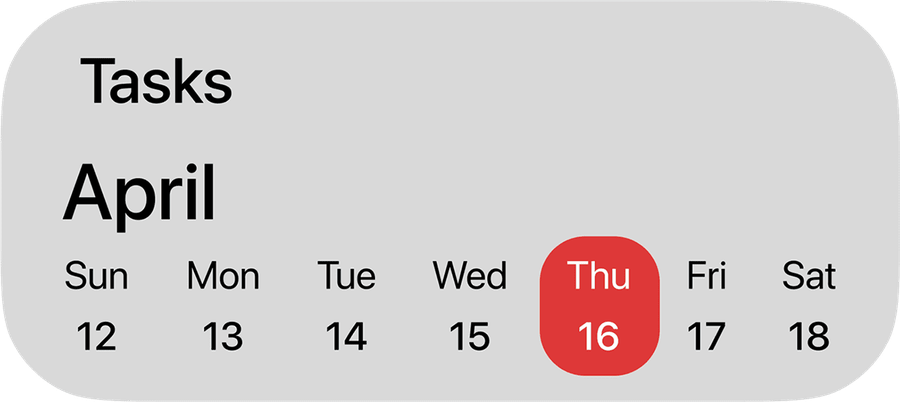
Tasks card with April week strip and today marked in red

Today

The week strip is the only navigation. Today is the one red circle on the screen, apart from the button.

Daily timeline with Brief, Feedback Session and Testing Session

One day, in order

Every item sits at its time. Repeats are stated in words, “Repeats every two weeks”, not with an icon she has to learn.

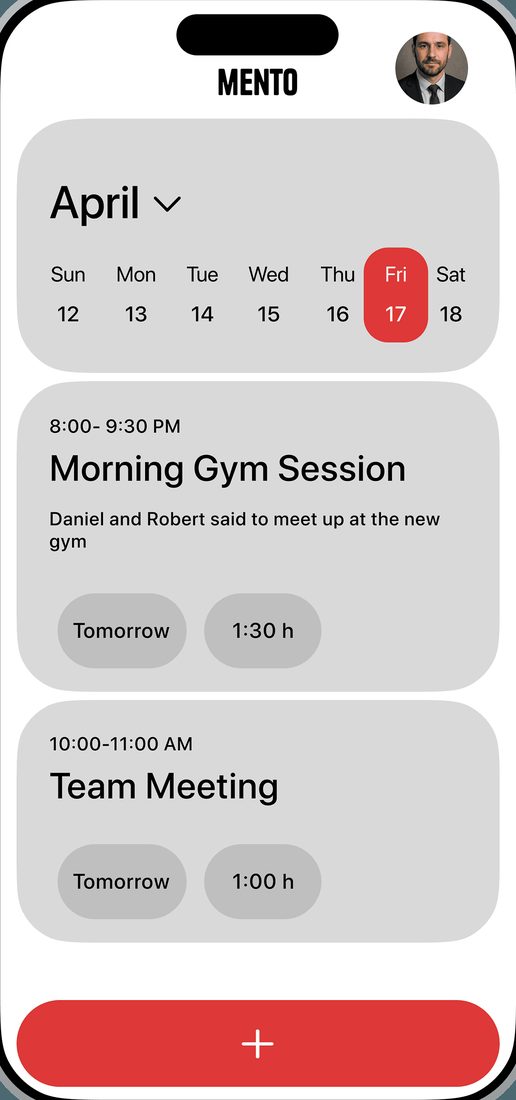
Timeline for tomorrow with Morning Gym Session and Team Meeting

Tomorrow, one tap away

The week strip moves the whole list. The “Tomorrow” pill on each card confirms which day she is looking at.

Prototype

The whole loop, in motion

Dashboard, timeline, add, write, confirm, back. This is the prototype the usability tests ran on, and where the 40% figure comes from: taps to create a task, counted against the same task in a nested-menu app.

The result: four content types in one list, each recognisable in grayscale, and a timeline that reads top to bottom like the day itself.

Visual system

Kept the palette to grey and one red, so the eye always lands on the next action

The palette is utilitarian. Warm grey (#E5E5E5) instead of stark white, for a screen people open many times a day. Red is reserved for two things: the add action and today. Because nothing else is red, the eye goes there instantly.

Everything sits on cards with a deep corner radius, so the tool feels tangible rather than clinical. With no colour coding and no folders, spacing and type weight carry the whole hierarchy.

Red#DE3838

Add button, today

Warm grey#E5E5E5

Cards, fields

Progress#B8B8B8

Goal progress fill

White#FFFFFF

Screen background

Ink#161616

Titles, body text

Muted#6A6C72

Times, descriptions

+

One red bar per screen. It adds on the timeline and confirms on the entry screen.

Add New Task

Full-width grey buttons for the four object types.

Today1:30 h16

Grey pills for when and how long. The red circle is today, and only today.

What I learned

Minimal is harder than maximal

With no folders and no tabs, there is no chrome to hide behind. Typography and spacing are all there is, so the simple version took more iteration than a feature-rich one would have.

  • I reframed the problem from organisation to capture before drawing a screen
  • I removed the feature every competitor has, because it was the one that made people quit
  • I tested the standard pattern and replaced it when it failed in motion
  • I designed in grayscale first, so hierarchy never depended on colour
  • I designed for the hand that’s walking, not the one at a desk
~40%

fewer taps to create a task, against standard nested-menu architectures

Interactive prototypeTwo directions tested30% mis-tap rate found and fixed

The first version was designed for someone sitting still. Testing showed the app gets used in motion, and what worked on a desktop mock-up failed on the street. That changed the entry pattern, and it changed how I test.

Questions

Have questions?

Doesn’t removing folders make the app useless for big projects?

It changes what a project is. In Mento a project is a goal, and a goal is a card with a progress fill on the dashboard. The tasks that serve it live on their dates, not under the goal, because the question people ask is “what do I do today?”, not “what belongs to project X?”.

Why hide the timeline when adding something?

Because the test said so. The speed-dial menu that kept the timeline visible produced a 30% mis-tap rate when people added items while walking. Full-width buttons removed the misses. Seeing the list behind the menu was worth less than hitting the right button.

Where does the 40% come from?

From counting taps on the prototype against the same task in a standard nested-menu app: open, choose a category, navigate to the list, add, type, set a date, save. Mento removes the category decision and the navigation, and merges add and save into one button.

Keep reading

Sofiaman: a monthly creative system for sleepwear